
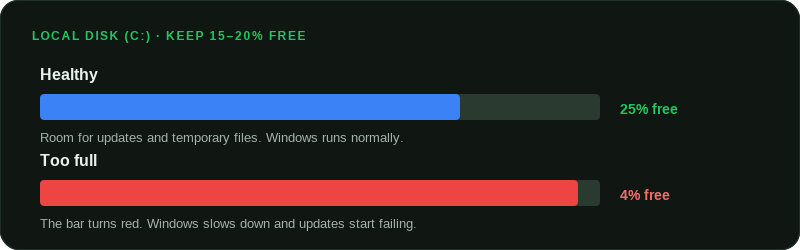
When the drive gets nearly full, Windows slows down and updates start failing. Keep at least 15–20% free.
See how full it is
Open File Explorer (the folder icon, or press Windows + E) and click This PC. The bar under Local Disk (C:) turns red when space is low.
1. Let Windows clean up
- Open StartSettingsSystemStorage.
- Click Temporary files, tick what you don’t need (Windows Update Cleanup, Delivery Optimization Files, Temporary files) and click Remove files.
- Turn on Storage Sense so Windows cleans these up automatically from now on.
Warning
In that list, leave Downloads unticked unless you’ve checked that folder first. It deletes everything in it.
2. Remove programs you don’t use
Open StartSettingsAppsInstalled apps (on Windows 10: AppsApps & features). Sort by size, then uninstall the big ones you don’t use or need. Leave anything from your computer’s maker (Dell, HP, Lenovo) or with “driver” in its name unless you’re sure.
3. Find the big stuff
- Downloads folder: old installers and videos pile up here.
- Videos and Pictures: move them to an external drive or OneDrive.
- Recycle Bin: right-click it and choose Empty Recycle Bin.
Tip
If you’re always out of space, a bigger, faster SSD is one of the best upgrades for an older computer. We can move everything over for you, so it starts up just like before, only faster.