
Good reasons to change it: you’ve had the same password for years, you gave it to too many people, or it’s still the one printed on the sticker.
1. Get into your router’s settings
Most routers can be managed one of two ways:
- The app from your internet company or router brand (Spectrum, AT&T Smart Home Manager, TP-Link Deco, Eero, Google Home…). If you have one of these, it’s the easiest route: look for Wi-Fi or Network settings.
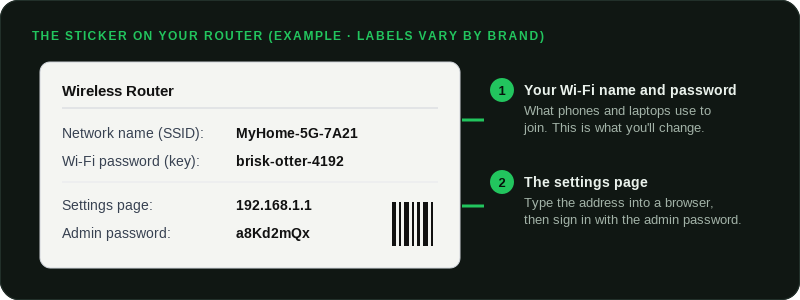
- A web page: on a computer connected to your Wi-Fi, type the router’s address into the browser’s address bar. It’s printed on the router’s sticker, and is usually 192.168.0.1 or 192.168.1.1. Sign in with the admin password from the same sticker.
2. Change the name and password
Find Wireless or Wi-Fi settings, then:
- Network name (SSID): anything you like. Avoid your last name or address.
- Password: at least 12 characters. A short phrase works well, e.g.
PelicanSunset2026! - Security: choose WPA3, or WPA2/WPA3, if offered. Avoid “WEP” or “Open”.
Click Save or Apply.
Warning
Every device disconnects the moment you save, including the one you’re using. Reconnect each one with the new password: phones, TVs, printers, smart speakers, cameras, doorbells.
Tip
Smart home gadgets are the fiddly ones. If you’d like to keep them connected, use the same name and password as before on a new router, or set aside 20 minutes to reconnect them.
Important
While you’re in there, change the router’s admin password too if it’s still the default one. That’s the password for the settings page, not the Wi-Fi.
Prefer we do it? We set up and secure home and business networks, including reconnecting every device.