
Drives fail without warning, and ransomware and spills happen. A backup that runs on its own is the difference between a bad day and losing every photo. You’ll need an external drive at least as big as what you’re backing up.
Tip
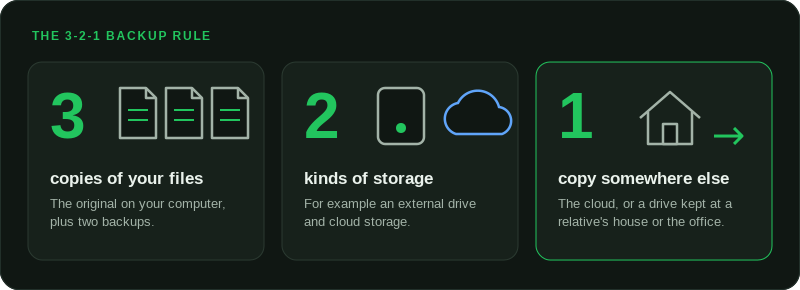
The 3-2-1 rule: keep 3 copies of anything important, on 2 different kinds of storage, with 1 copy somewhere else (the cloud, or a drive at a relative’s house).
Windows: File History
- Plug in your external drive.
- Open Control Panel (search for it in the Start menu), then System and SecurityFile History.
- Click Turn on.
- Under Advanced settings, set Save copies of files to Every hour and Keep saved versions to Until space is needed.
File History backs up your Documents, Pictures, Videos, Desktop and other personal folders. To get a file back, go to the same place and choose Restore personal files.
Mac: Time Machine
- Plug in your external drive.
- Open Apple menuSystem SettingsGeneralTime Machine.
- Click Add Backup Disk, pick the drive, then Set Up Disk.
Time Machine backs up everything, every hour, while the drive is connected.
Important
A backup only runs while the drive is plugged in. For a laptop, plug it in at least once a week, or ask us about backing up automatically over the network.
Note
Cloud storage (OneDrive, iCloud, Google Drive) is great as your offsite copy, but syncing isn’t the same as a backup: if you delete a file, it’s deleted everywhere.
Want it hands-off? We set up home and business backup servers and offsite backups to Nerd Base One.